
Getting Started at Gower College Swansea
Before you attend your welcome day, please make sure that you scroll down and complete all five of the necessary tasks that are listed directly below:
- Task 1 - Find your College personal details.
- Task 2 - Download 'GetEduroam'.
- Task 3 - Download 'ENGAGE' App
- Task 4 - Download 'Microsoft Authenticator' Apps.
- Task 5 - Complete your three CENTURY assessments. (AS & Level 3 Learners only).
Task 1 - Find your College personal details
You will need these to be able to complete various log-ins for college apps and activities.
Part 1: College ID
Your College student ID number is on your ID badge and your College enrolment confirmation form. It will be similar to: 123456 (or ABC123456 if you are a returning learner)
Part 2: Your College username
Your College username is your student number (as above) followed by the suffix @stu.gcs.ac.uk
It will look something like: 123456@stu.gcs.ac.uk (or ABC123456@stu.gcs.ac.uk if you are a returning learner)
Part 3: Your college password
You should have received a text message with your temporary College password on the next working day after your enrolment was confirmed.
You can change the password you have received on first login.
Task 2 - Download 'GetEduroam'

Please install this app BEFORE you come to College. You will need it to access the College WiFi, and there may be limited mobile data/4G available on campus to download and install it.
You will not be able to use the app until you are physically in College. Instructions on how to connect to the College WiFi will be provided on your first day.
Search for ‘GetEduroam’ on Playstore or App Store and download the app


Task 3 - Download 'ENGAGE' App

Gower College Swansea’s very own ‘Your Student Life’ app.
The Engage App is your personal College information app. Here you can check timetables, attendance, messages and lots more.
Search for ‘GCS Engage’ on Google Play or App Store and download the app.
To log in, click Azure AD then enter your college email and password, if prompted.
Task 4 - Download 'Microsoft Authenticator' App


This app is required for accessing your College files and other content from when at home or away from the College site.
Search for ‘Microsoft Authenticator’ on Playstore or App Store.
To then log in, follow these simple steps:
- Open the Authenticator app
- Select the + button
- Tap Add work or school account
- Select Sign in
- Enter your College account credentials – this is your student username (e.g. Your student ID followed by @stu.gcs.ac.uk)
- Password: Your password from above.
Task 5 – Complete your CENTURY assessments by Friday 4 September
Available from Tuesday 25 August:
This will give your lecturers an understanding of your skill levels in Literacy, Numeracy and Digital Literacy.
How to sign in to CENTURY:
You can sign in to CENTURY on a computer, laptop, tablet or smartphone.
Go to the Century website: app.century.tech
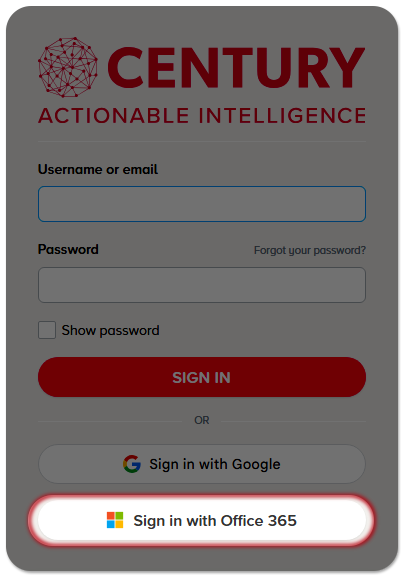
On the sign in screen, click Sign in with Office 365 and enter your college username and password to sign in.
Complete your Initial Assessment:
Once you sign in, you will see a list of your Initial Assessments.
These can be completed in any order. Choose which subject you would like to complete first and click the start button.
Watch the introductory video and then work through the questions.
Once you have completed an Initial Assessment, you will be returned to the homepage where you can complete the remaining Initial Assessments.
Recommended Pathway:
Go to your Recommended Pathway (at the top of the page).
You will be shown your recommended pathway which can help develop your learning and fill in any gaps in your knowledge. It is personalised for you and adapts as you learn.
Click the start button to begin. Complete each section to unlock the next one.
Thank you for completing these steps which will help you to settle in at College more quickly and easily. We look forward to seeing you in September!
FAQs
Your first day will be either 1st or 2nd of September but may vary for different campuses. You should have been given a letter with your official start date.
You should have been given a room number for your welcome day. If you are unsure about where to go on your first day, then head to reception where staff will be on hand to help you to your rooms.
Your first day is an opportunity to meet your College lecturers, get to grips with College systems and learn about all of the support available to you. You will be taken on a tour of all College services and support hubs. You will meet new classmates and there will be opportunities to meet new people throughout the day. There will be activities on throughout the day to help you settle and have fun. Quieter lunchtime activities can be found in the libraries on all campuses.
Timetables will be verified when you attend your Welcome Day and information on how to view them will be given on the day.
If you would like to change your password, click the link below and follow the steps.